I may lose the laptop
Use Device Encryption or BitLocker so the internal drive is unreadable when removed or booted offline. This is the main full-disk encryption scenario.
Check edition support →Windows 11 has three native encryption paths that look similar in Settings but protect different things. This guide explains which one your edition supports, how to use it safely, and when a dedicated file encryption tool makes more sense.
Device Encryption is the simplest whole-device option and can appear on supported Windows 11 Home PCs. BitLocker Drive Encryption adds full volume controls on Pro, Enterprise, and Education. EFS encrypts selected NTFS files for a Windows user account and is not available on Home. Back up the recovery key or EFS certificate before making firmware, account, drive, or Windows changes.
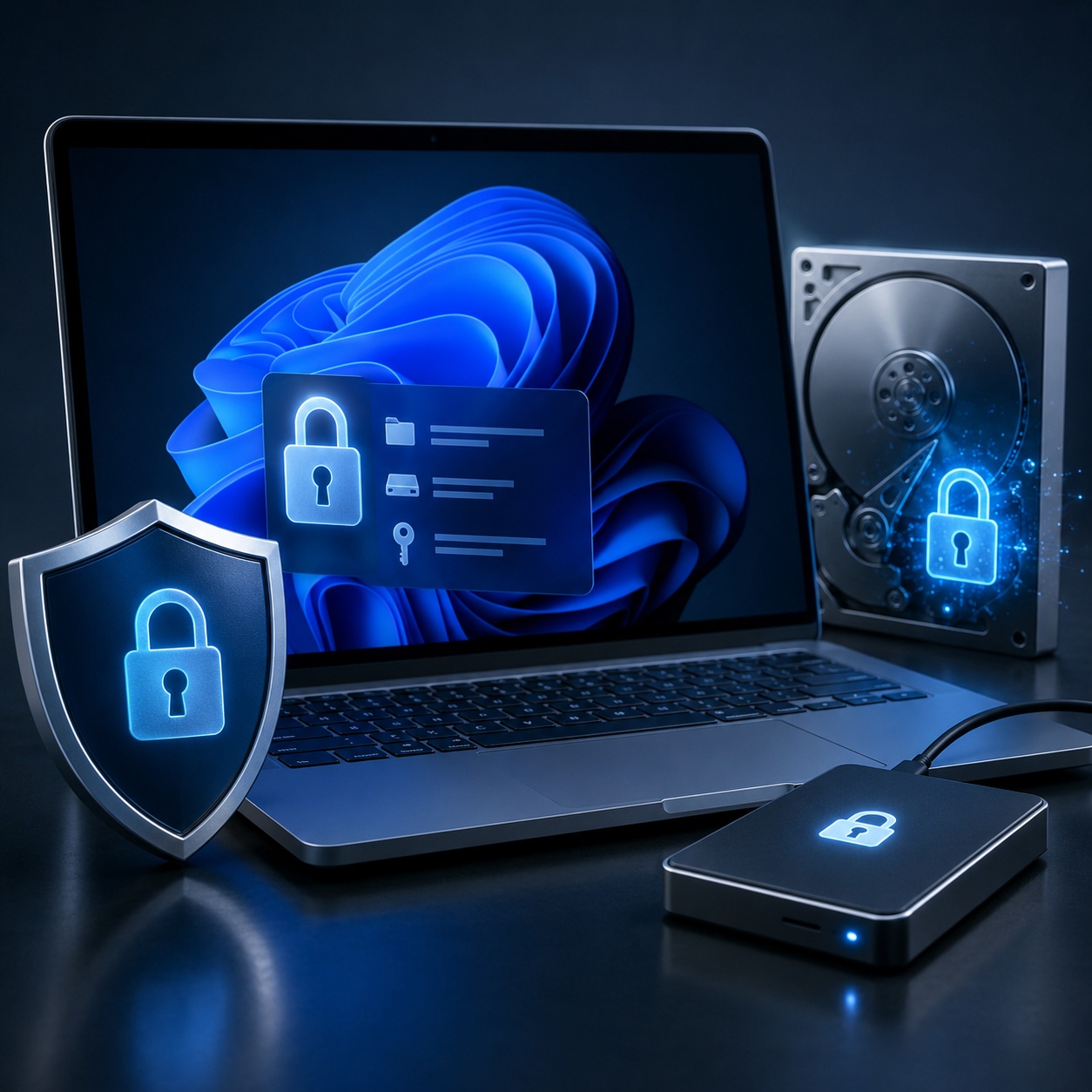
To enable BitLocker: on Windows 11 Pro, Enterprise, or Education, search for Manage BitLocker, choose Turn on BitLocker, select an unlock method, back up the recovery key, choose used-space-only or full-drive encryption, and start.
To disable BitLocker: open Manage BitLocker, choose Turn off BitLocker, and confirm decryption. Leave the PC connected to power and do not interrupt the process.
To suspend BitLocker: choose Suspend protection before an expected BIOS, UEFI, TPM, or firmware change. Suspension keeps data encrypted but temporarily allows the expected boot change without repeated recovery prompts.
Encryption converts readable data into ciphertext using a cryptographic key. In Windows 11, the key can be released at boot by the Trusted Platform Module, after a password or PIN, or after the correct Windows user signs in with access to an EFS certificate.
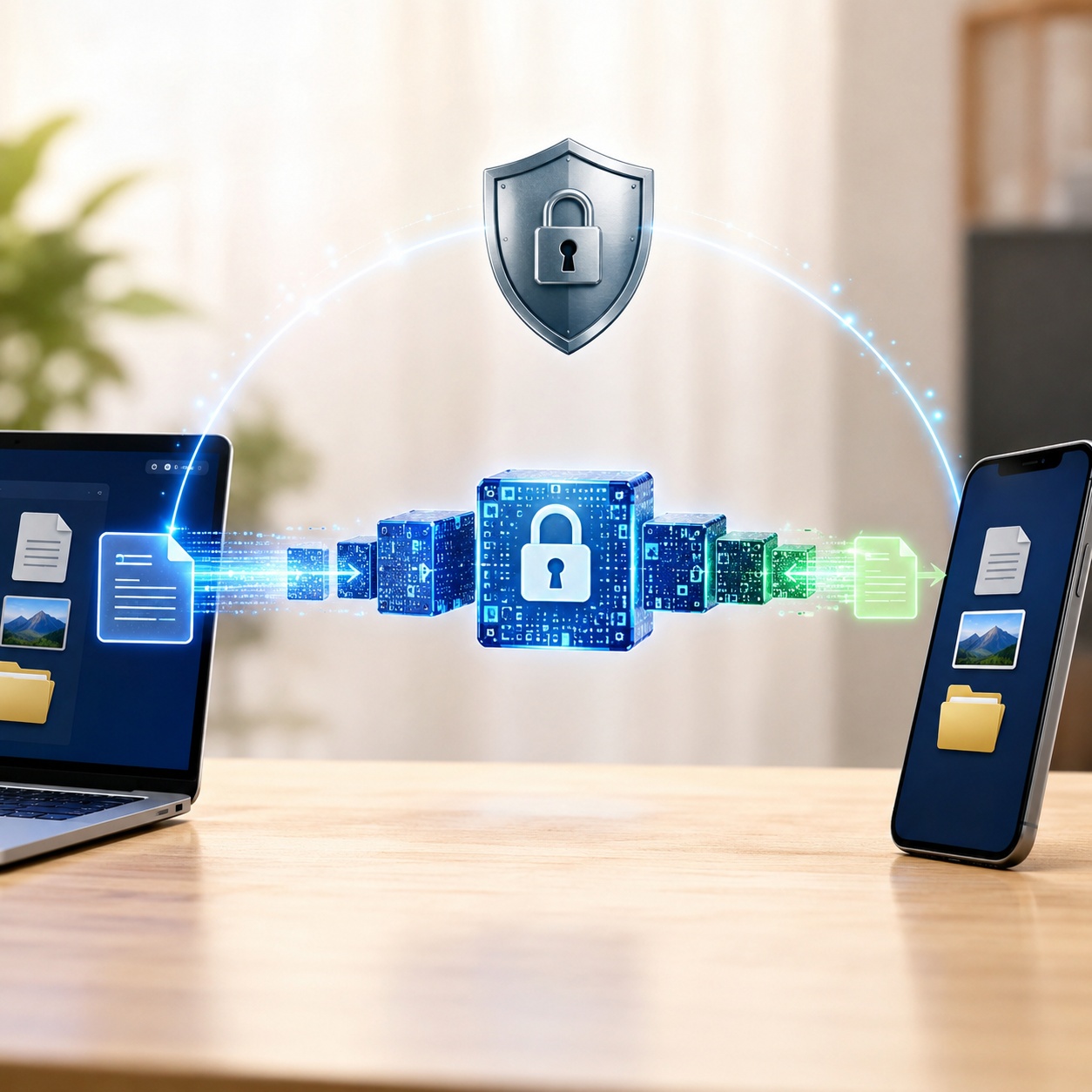
Use Device Encryption or BitLocker so the internal drive is unreadable when removed or booted offline. This is the main full-disk encryption scenario.
Check edition support →EFS can separate selected files between Windows accounts on supported editions. A dedicated encrypted locker is easier when you want a separate password or portable vault.
Compare file-level options →Use BitLocker To Go on supported editions or a portable encrypted locker. Test the drive on every computer where authorized users must open it.
Protect a removable drive →
The feature name matters less than the edition, hardware support, account type, and management controls available on the PC.
| Feature | Windows 11 Home | Pro | Enterprise / Education | Best use |
|---|---|---|---|---|
| Device Encryption | Available on supported devices | Available on supported devices | Available | Simple automatic protection for the OS and fixed drives |
| Manage BitLocker | Not included | Included | Included with policy controls | Full volume management, removable drives, recovery options |
| EFS file encryption | Not available | Available | Available with enterprise recovery policy | Selected NTFS files tied to a Windows user certificate |
| BitLocker To Go | Cannot enable natively | Can enable | Can enable and manage | USB and removable-drive encryption |
| Dedicated encryption software | Available | Available | Check organizational policy | Folder-level password protection, portable lockers, cloud workflows |
Windows 11 normally requires TPM 2.0, and modern Device Encryption relies on compatible hardware and firmware. Full BitLocker can also use TPM protectors, startup PINs, or a startup key under the right policy.
EFS does not use the BitLocker recovery key. Export the EFS certificate and private key to a protected backup. Reinstalling Windows or losing the profile can make files unreadable.
Device Encryption is a simplified BitLocker experience that can automatically protect the operating system drive and fixed drives on compatible Windows 11 hardware. It is designed for people who want encryption without managing every BitLocker policy.
BitLocker protects an entire volume against offline access. It is the native choice for system drives, fixed data drives, virtual hard disks, and removable drives when you need recovery-key and policy controls.

EFS encrypts selected NTFS files using a certificate linked to the Windows account. It is useful for separating files between users on the same PC, but it is not a simple folder password and it is easy to lose access after profile or system changes.

BitLocker To Go encrypts removable drives. Choose a strong password, save the recovery key somewhere separate, and test the drive on the exact Windows editions used by recipients.
Windows does not provide a native “set a separate password on this folder” command. EFS ties access to a Windows certificate, BitLocker protects a drive, and 7-Zip creates encrypted archives. Dedicated encryption software can create a password-protected locker that behaves more like a working folder.
Use 7-Zip for files you archive and send occasionally. Use a dedicated locker for files you open and update often, or when Windows Home lacks EFS and full BitLocker controls.
Use these tools to narrow the right method, check compatibility, estimate performance, and build a recovery-safe setup.
Choose what you are trying to do.
These commands show status. They do not unlock, bypass, or remove protection.
manage-bde -status
manage-bde -protectors -get C:
cipher /c "C:\path\to\file.ext"Strong algorithm, but recovery and password practices still need work.
AES transforms blocks of plaintext through repeated key-dependent rounds. This simplified animation shows the concept, not the actual cipher math.
Modern CPUs often accelerate both, so storage speed and initial encryption volume dominate. XTS-AES 256 can have a small throughput cost, but the difference is workload and hardware dependent.
Measure sequential and random reads and writes before and after enabling encryption, with the same power plan, thermal state, free space, and background workload. A synthetic benchmark is useful, but application launch time, file copy, virtual machine startup, and database latency are more meaningful.
0 of 8 completed
| Method | Difficulty | Security scope | Cost | Best for | Limitations |
|---|---|---|---|---|---|
| Device Encryption | Easy | OS and fixed drives | Included on supported devices | Simple lost-device protection | Hardware dependent, fewer controls |
| BitLocker | Moderate | Full volume | Included with Pro or higher | Internal, data, VHD, and removable drives | Not a separate folder password |
| EFS | Moderate | Selected NTFS files | Included with Pro or higher | Windows user separation | Certificate loss can be permanent |
| 7-Zip AES-256 archive | Moderate | Archive contents | Free | Sending or storing file snapshots | Awkward for files edited frequently; metadata settings matter |
| VeraCrypt container | Advanced | Volume or container | Free and open source | Portable containers and advanced users | Manual mounting, recovery and update discipline |
| Folder Lock 10 | Easy to moderate | Encrypted lockers and protected folders | Free tier; paid Pro | Separate password, frequent use, cloud-sync lockers | Third-party software and subscription for full features |
| Editorial verdict | Use BitLocker or Device Encryption for the whole PC. Add EFS only when you understand certificate recovery. Use an archive for occasional transfer, or a dedicated locker for an actively used password-protected folder. | ||||
Symmetric encryption uses one secret key for encryption and decryption. It is efficient for disks and large files, which is why AES is common. Asymmetric encryption uses a public and private key pair and is useful for exchanging keys, digital signatures, or sharing access with specific people.
BitLocker supports XTS-AES 128 and 256, plus compatible CBC modes. Automatic encryption commonly defaults to XTS-AES 128. AES-256 expands the key size, but a well-managed 128-bit key is already extremely resistant to brute force. Recovery, password quality, endpoint security, and backups remain decisive.
On modern hardware the difference is often small, but it is not universal. XTS-AES 256 can reduce maximum throughput on some systems. Measure your own storage workload before setting an organization-wide policy.
Hardware encryption can offload work to a self-encrypting drive, but security depends on the drive implementation and management chain. Software encryption is easier to standardize and audit across mixed hardware. Modern CPUs with AES acceleration usually make software encryption practical.
Full-volume encryption protects names and metadata while the volume is locked. EFS encrypts file contents, but names, paths, sizes, timestamps, and access patterns may remain visible. Archive tools vary, so enable filename encryption where available.
Some container tools support hidden volumes designed to make a second encrypted area difficult to prove. This is an advanced feature with complex operational risks. Overwriting free space, using the wrong volume, backups, thumbnails, and recent-file records can undermine the intended privacy.
Encryption can support HIPAA, GDPR, PCI DSS, and SOC 2 controls, but no encryption product makes an organization compliant by itself. The control must match the data, risk assessment, access model, incident process, retention policy, backups, and key-management evidence.
For electronic protected health information, document the risk analysis and why the selected encryption and access controls are reasonable for the environment. Protect keys separately from the encrypted data and preserve availability through tested backups.
Article 32 identifies encryption as an appropriate measure depending on risk. Organizations still need access control, resilience, restoration, testing, breach response, and processor governance.
Strong cryptography can render stored cardholder data unreadable, but encryption alone does not automatically remove systems from PCI scope. Key access, rotation, separation of duties, logging, and the surrounding environment matter.
Auditors look for controls that are designed, implemented, and operating. Record who owns keys, where recovery copies are stored, how access is approved and removed, and how restoration is tested.
Do not keep the only recovery key on the same PC or encrypted volume. Use a Microsoft account, authorized organizational escrow, password manager, protected USB, secure print copy, or another controlled repository.
Maintain at least two controlled copies in different failure domains. A cloud account and a printed copy, or IT escrow and a protected offline copy, are more resilient than two files on the same drive.
Verify the recovery key and suspend BitLocker protection before expected firmware work. Re-enable protection afterward and confirm that protectors are active.
Record the key ID, locate the matching recovery key from another device, test certificate import on a safe copy, and perform a documented file restore. An untested backup is only a hope.
Folder Lock 10 is most useful when the protection boundary is smaller than the computer itself. It creates an encrypted workspace for selected records while Device Encryption or BitLocker continues to secure the Windows volume underneath it.
On Windows 11, you can keep a local locker on the PC, place encrypted data inside supported Dropbox, Google Drive, or OneDrive locations, or prepare a portable locker for removable storage. The local workspace expands as content is added, so there is less need to predict a fixed container size at the start.
Its sharing workflow is more controlled than sending an encrypted attachment with the password beside it. Authorized recipients use compatible Folder Lock software and their own permitted access. That can suit ongoing collaboration, but it also makes the process dependent on every participant having the required application and account access.
It is not a substitute for full-disk encryption, centralized endpoint management, or a tested backup plan. Only data placed inside the protected workspace receives locker encryption, cloud availability still depends on the chosen provider, and a lost encryption secret can leave the data unavailable. Keep Windows drive encryption enabled, retain an independent copy of important files, and confirm which capabilities require Pro before deployment.

A Desktop Locker grows with the protected content instead of asking you to reserve a large fixed volume in advance.
Dedicated locker choices place ciphertext inside supported Dropbox, Google Drive, or OneDrive folders.
Approved users can receive access without everyone sharing the owner's master secret, provided they use compatible software.
Selected data can travel in an encrypted container on removable media rather than exposing the whole drive.
The Windows Safeguard tools can hide or block selected items when encryption is unnecessary for that particular folder.
Compatible desktop and mobile clients can open synchronized encrypted data, although available features vary by platform.
Separate areas can organize confidential notes, account details, and other small records away from ordinary documents.
File shredding, free-space cleanup, and Windows history cleanup address traces that encryption alone does not remove.
The no-cost edition supports a limited trial workflow, while larger lockers, broader syncing, sharing, and portable options require Pro.
The software does not remove the need for password records, offline backups, restore tests, and a plan for account loss.

Download from NewSoftwares.net, scan the installer, and confirm that Windows displays the expected publisher before allowing changes to the PC.
Use a unique passphrase, verify the recovery email, and save the credential record somewhere that is not inside the locker you are about to create.
Select a Desktop Locker for local records or the matching cloud locker when encrypted files must synchronize through Dropbox, Google Drive, or OneDrive.
Add copies of several representative files, open and edit them from the mounted workspace, then close the locker and confirm that the stored form is not directly usable outside it.
For shared projects, authorize the intended recipient and confirm that the other person can use a compatible Folder Lock client. Do not send your master password as the access method.
Lock the locker before stepping away and lock the Windows session as well. Device Encryption or BitLocker should remain active for protection while the computer is powered down.
Maintain an independent backup of irreplaceable files, record the installer and account details, and verify that you can reopen synchronized or portable data from another authorized device.
A locker protects content that has been moved or created inside its managed workspace. Unencrypted originals, exports, email attachments, application caches, and temporary copies outside that boundary need separate handling.
Use a local locker when data should remain on the Windows PC. Choose a provider-specific cloud locker when encrypted data must travel through Dropbox, Google Drive, or OneDrive. The cloud provider still controls account availability, sync timing, version history, and storage quotas.
Product-managed sharing can grant an approved user access without disclosing the owner's main password. The recipient still needs a compatible client and working account access, so test the complete workflow before using it for a deadline-sensitive transfer.
Folder Lock clients exist for Windows, macOS, Android, and iPhone or iPad, but the feature set is not identical everywhere. Windows includes the broadest desktop protection tools, while mobile editions focus more on private media, documents, notes, wallets, app-level privacy, and secure transfer features. Treat cross-device access as continuity, not perfect feature parity.
The free edition is useful for confirming compatibility and learning the workflow, but its storage and device limits make it unsuitable for many production collections. Pro adds the capacity, sharing, folder-protection, and portable options that active users are more likely to need. Confirm the current matrix before purchase.
Check whether previews, thumbnails, recent-file lists, search indexing, autosave folders, print spools, and exported copies can leave readable traces outside the protected location. Encryption software cannot protect a duplicate that another application saved elsewhere.
Smart App Control helps block untrusted or malicious applications on eligible Windows 11 installations. It does not encrypt folders. Use it alongside encryption, Microsoft Defender, updates, and least-privilege accounts.
Check recent releases, signed downloads, audit reports, maintainer responsiveness, issue history, documentation, and whether the format can be recovered without a proprietary service.
| Option | Windows 11 Home | Working folder | Full disk | Portable | Best for |
|---|---|---|---|---|---|
| Device Encryption | Supported hardware only | No separate folder | OS and fixed drives | No | Simple whole-device protection |
| 7-Zip | Yes | Archive workflow | No | Yes | Occasional transfer and storage |
| VeraCrypt | Yes | Mounted container | System support depends on configuration | Yes | Advanced users seeking open-source containers |
| Folder Lock 10 | Yes | Encrypted locker | Not a BitLocker replacement | Pro includes portable lockers | Frequently used data that needs a separate password or cloud-sync workflow |
| Bottom line | On Home, keep Device Encryption enabled when supported. Add an encrypted archive for occasional use or a dedicated locker for files you work with frequently. | ||||
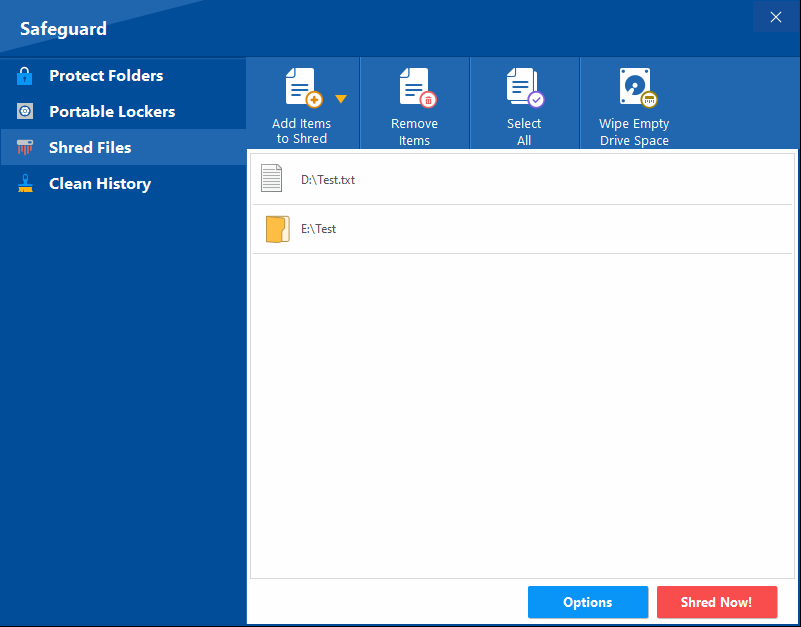
These names describe different protection models. Choosing the wrong one can leave a gap between what the user expects and what the software actually secures.
| Product | Primary control | Encryption | Useful Windows 11 scenario | Main limitation |
|---|---|---|---|---|
| Folder Lock 10 | Encrypted lockers plus optional folder access controls | AES-256 for locker data | Active documents that need a password separate from Windows, cloud synchronization, or a portable container | Does not encrypt the Windows system volume; recipients need compatible software for managed sharing |
| Folder Protect | Rules that can hide an item or restrict opening, editing, and deletion | No cryptographic file encryption | Shared PCs where the goal is to control how local users interact with selected files, folders, drives, programs, or file types | Access restriction is not protection against offline disk access or physical drive theft |
| Folder Lock Lite | Basic lock-and-hide workflow | No encryption capability | Legacy users who only need simple visibility and access restrictions | Should not be selected when the requirement is confidential data at rest |
The free edition is best treated as a compatibility and workflow test rather than a complete long-term deployment.
| Capability | Free | Pro | Planning note |
|---|---|---|---|
| Locker capacity | 1 GB | Unlimited in the product matrix | Cloud-provider and local-disk quotas still apply |
| Synced devices | 2 | 5 | Test every authorized device before depending on it |
| Shared users | Not included | Listed as unlimited | Recipients require compatible Folder Lock access |
| Portable lockers | Not included | Included | Use a separate backup because removable media can fail |
| Folder access controls | Not included | Included | These controls complement encryption; they do not replace drive protection |
| Shredding and history cleanup | Included | Included | Review exclusions carefully before destructive deletion |
The product material reviewed for this page listed Folder Lock 10 Pro at US$39.95. Confirm the current billing term, renewal conditions, taxes, regional pricing, and feature limits at checkout.
| Problem | Likely cause | Safe fix |
|---|---|---|
| Device Encryption is missing | Unsupported hardware, standard account, local-account setup, or support condition not met | Run System Information as administrator and read Device Encryption Support. Confirm edition and administrator status. |
| “Encrypt contents to secure data” is unavailable | Windows 11 Home, non-NTFS location, policy restriction, or unsupported file state | Confirm the edition and NTFS volume. On Home, use a supported alternative instead of registry workarounds. |
| A valid USB key was not detected by BitLocker | Startup-key policy, USB port availability before boot, incompatible media, or firmware settings | Try another known-good USB drive and port, confirm preboot USB support, and review authorized policy. Do not clear TPM protectors. |
| BitLocker asks for recovery after BIOS update | Measured boot values changed | Use the matching 48-digit recovery key. After Windows starts, verify firmware, then resume or reset protectors only if you administer the device. |
| This drive is locked by BitLocker | Auto-unlock unavailable, password forgotten, protector changed, or drive moved | Use the password, smart card, or matching recovery key. Check the key ID before entering a key. |
| After entering the recovery key, the prompt returns | Unresolved firmware, Secure Boot, boot order, or protector issue | Start Windows with the key, correct the verified boot issue, update firmware carefully, and recreate protectors only after backing up the key. |
| EFS files are unreadable after reinstall | The original certificate and private key are missing | Import the exported .pfx certificate, restore the original profile backup, or contact authorized organizational recovery support. A BitLocker key does not replace the EFS certificate. |
| Need to format a BitLocker drive | Drive is being repurposed or data is no longer required | Recover needed files first. Then unlock and format. If the data is not needed and you own the drive, formatting erases the encrypted volume. |
| Cannot remove BitLocker before selling a PC | Decryption incomplete or Windows is not bootable | Back up files and recovery key. Use Reset this PC with drive cleaning or a verified secure erase process appropriate to the drive and ownership. |
Device Encryption stays enabled for lost-device protection. A separate encrypted locker holds client contracts because Home lacks EFS and full BitLocker management.
Illustrative scenario, not a customer endorsement.BitLocker protects every laptop, recovery keys are escrowed, and a restricted encrypted folder holds exported reports. Access, backups, and audit logs remain separate compliance controls.
Illustrative scenario, not legal advice.BitLocker To Go works when all recipients use compatible Windows systems. A portable encrypted locker is chosen when a separate password and self-contained workflow are more practical.
Illustrative scenario, not a customer endorsement.XTS-AES 128 is retained after benchmarking shows little practical gain from changing the policy. Recovery keys are verified before every firmware update.
Illustrative scenario, not a performance guarantee.| User or situation | Recommended method | Why | Honest alternative |
|---|---|---|---|
| Windows 11 Home laptop owner | Device Encryption when supported | Native and automatic whole-device protection | Dedicated locker for separate folder passwords |
| Pro user protecting the system drive | BitLocker | Native recovery and volume controls | Device Encryption for a simpler configuration |
| Two users sharing one Pro PC | BitLocker plus EFS for selected files | Offline volume protection plus user separation | Separate encrypted locker with its own password |
| Occasional encrypted file transfer | AES-256 archive | Portable and easy to send | BitLocker To Go for a whole USB drive |
| Frequently edited cloud files | Encrypted cloud locker | Encrypted form syncs while files remain workable | Manual archive snapshots for infrequent changes |
| Enterprise-managed fleet | BitLocker with centralized policy and escrow | Consistent deployment, recovery, and auditability | Approved file-level controls for high-risk datasets |
Windows 11 encryption is a group of protections for data at rest. Device Encryption and BitLocker protect whole volumes, while EFS protects selected files and folders for a Windows user account.
Device Encryption is the simplified automatic form of BitLocker available on supported hardware, including some Home devices. Full BitLocker management is available in Pro, Enterprise, and Education. EFS encrypts individual files with a certificate linked to the user account.
Yes, when it is configured correctly and the recovery material is backed up. The most common failure is not weak encryption but losing a recovery key, EFS certificate, password, or access to the account that holds it.
Windows 11 Home can include Device Encryption on compatible hardware, but it does not include the full Manage BitLocker experience. Full BitLocker Drive Encryption management is available in Pro, Enterprise, and Education.
No. Microsoft states that built-in file and folder encryption is not available in the Home edition. EFS requires Windows 11 Pro, Enterprise, or Education.
On Windows 11 Pro, Enterprise, or Education, search for Manage BitLocker, choose Turn on BitLocker for the drive, select an unlock method, back up the recovery key, choose an encryption scope, and start encryption.
Open Manage BitLocker, choose Turn off BitLocker for the drive, and confirm decryption. Keep the device powered and do not interrupt the process. For a temporary firmware change, suspend protection instead of decrypting the whole drive.
You can pause an active encryption or decryption process, but do not disconnect a removable drive until Windows shows that it is safe. Suspending protection is different: it temporarily stops boot measurements from triggering recovery while data stays encrypted.
Yes, if you own the drive and accept that formatting erases its data. Unlock it first when possible, copy anything needed, then format it through Disk Management or File Explorer. Formatting is not a recovery method for files you still need.
Yes, but a clean installation can erase encrypted data. Back up the recovery key and files before reinstalling. If you need data from the existing installation, recover or unlock it first.
AES-256 is the Advanced Encryption Standard with a 256-bit key. It is widely trusted because it has a large key space, broad hardware acceleration, and extensive security review. Correct key handling still matters more than selecting the largest key alone.
On a modern CPU and SSD with hardware acceleration, day-to-day impact is usually modest. Initial encryption, large file transfers, older CPUs, and slow hard drives show the biggest difference.
Properly encrypted data is not realistically recoverable by guessing a strong key. Recovery usually depends on a saved BitLocker recovery key, an EFS certificate, a password backup, an authorized organizational escrow, or an unencrypted backup.
It can be, but open source is not a guarantee. Review the project's maintenance, audit history, update process, cryptographic design, download verification, and recovery model before relying on it.
Full-disk encryption protects an entire volume when the device is off or locked at boot. File-level encryption protects selected files and can separate access between users, but it usually reveals more metadata and needs separate key or certificate management.
Encrypt the files locally before they enter the sync folder, keep the password or key outside the cloud account, test restoration, and retain a second backup. A cloud-synced encrypted locker is easier to manage than manually encrypting every upload.
You may permanently lose access. Check your Microsoft account, work or school account, printed copy, saved key file, USB backup, password manager, EFS certificate export, and authorized IT support before changing or formatting anything.
Folder Lock 10 creates encrypted lockers and also includes optional access-control tools. Folder Protect focuses on restricting visibility, access, modification, or deletion without encrypting the file contents. Folder Lock Lite is a basic lock-and-hide edition and should not be treated as encryption software.
Back up the files and recovery key, then use Windows Reset with the drive-cleaning option or a verified secure erase process appropriate for the SSD or HDD. Encryption helps because destroying the remaining key can make residual ciphertext unusable, but verify the reset and remove the device from organizational management.
Start with BitLocker for every supported Windows 11 business device. Add file-level controls only for a defined need: EFS with certificate recovery, approved encrypted archives for transfer, or an audited locker for active shared workflows. Central policy, key escrow, updates, logs, and restore testing matter more than a feature count.
Choose a tool that encrypts locally before upload, supports the actual sync provider, handles file conflicts safely, and has a documented recovery process. Keep keys outside the cloud account and test restoration after a sync conflict or deleted-file recovery.
Disk encryption does not secure a message after it leaves the PC. Use a business email platform with TLS, identity controls, phishing protection, and message-level encryption for sensitive exchanges. For attachments, encrypt the file locally and send the password through a separate channel.
Decide whether to use the drive vendor's security software, BitLocker To Go, or a portable encrypted container. Avoid stacking multiple full-drive encryption layers unless the vendor supports it. Keep the unlock software and recovery information available on a separate device.
Microsoft: Device Encryption in Windows
Microsoft Learn: BitLocker overview
Microsoft: Back up a recovery key
Microsoft: EFS file encryption
GDPR Article 32 source
PCI Security Standards Council
For most Windows 11 PCs, the first priority is whole-device encryption. Keep Device Encryption enabled on supported Home hardware, or use full BitLocker on Pro, Enterprise, and Education. Add EFS only when you can manage certificates and recovery correctly.
When the requirement is an actively used folder with its own password, Folder Lock 10 offers a clearer workflow than trying to turn BitLocker or EFS into a folder-password tool. Its strongest fit is selected business or personal data that must remain workable locally, synchronize in encrypted form through a supported cloud provider, or travel in a portable locker.
That recommendation has boundaries. Folder Lock does not protect the Windows boot volume, Folder Protect and Folder Lock Lite are not encryption substitutes, shared recipients need compatible access, and the useful Pro capabilities go beyond the free edition. The safest design combines drive encryption, a protected workspace only where needed, independent backups, and tested recovery records.
This static guide does not include account registration or embedded analytics. Hosting providers may still process standard server logs. Review and replace this notice with the final deployment policy before launch.
The guide is provided for general education. Readers remain responsible for backups, recovery keys, authorization, organizational policy, and testing before changing encryption settings.
Encryption and compliance guidance is not legal advice, a recovery guarantee, or permission to access data without authorization. Product capabilities and prices can change.
Native Windows options are explained before commercial tools. Recommendations are based on use-case fit, limitations, recovery design, and current official documentation.